Showing posts with label I-Phone. Show all posts

How to Reset Network Settings

How to Reset Network Settings - Network Signal drop-off after upgrading to a new iPhone 4S, 4, 3GS on iOS 4.x, iOS 5.x and iOS 6.x cause it is a public issue we will show you some tips will help you to fix this issues.
How to Reset Network Settings

Step 1: On your Settings App
Step 2: Go to General then scroll down until you find “Rest”


Step 3: Go to Rest and Select Rest Network Settings then your device will inform you to enter your passcode


Step 4: Your device will inform you also by the message below then select Rest Network Settings

Note: You have to know that you will lose some WIFI passwords, but you may also find that your cellular reception gets a lot better, by this way you will be able to get more network signal bars.
Let us know in the comments if it helped, or sadly, if it didn’t. __________________

How To Fix Wifi issues [Grayed out or Dim]

How To Fix Wifi issues - Apple devices are known to be of superior build amongst other devices. However, It has its own share of problem one of which is the issue of difficulty experienced when trying to connect device to a wifi network, locating a wifi network or even browsing on one
How To Fix Wifi issues

In case you have such a device with the aforementioned problems, Just follow the guide below and the problem should be solved. Requirements
  • Make sure wireless device is on and broadcasting at the right frequency
  • Make sure Apple device is within range of wireless signal.
  • If wireless router is passcoded, make sure passcode is known.
How To Fix Wifi issues
Step 1: Tap Settings on your device, and tap Wi-Fi, toggle It Off and On again.
Step 2: Now connect to the displayed wifi network. Once connected, it would be checked.
Step 3: Click on the small blue arrow and then click on forget this network
Step 4: Rejoin network again. Input passcode If asked. Once you have done this. Checked If problem is resolved.
Step 5: If not resolved, reboot device, try connecting again. If problem persist, meet the Administrator of the wireless device to check your wireless band If its compatible with the router being used.
Step 6: However, If problem is resolved, devices would be connected and browsing. In case you need more helps in dealing with this problem don’t hesistate to drop your comments
iF your Wi-Fi settings is grayed out or dim so you have to check the steps below:

Note: This is means that your Wifi address is missing make sure about that go to Settings > General > About (Missing Wi-Fi address):

Follow these steps to resolve the issue:
Step 1: Make sure that airplane mode is off go to Settings –> Airplane Mode.
Step 2: Reset the network settings go to Settings –> General –> Reset –> Reset Network Settings.
Step 3: Make sure that your device is using the latest software. To do so,
  • Go to Settings –> General –> Software Update. now your iOS will automatically check for available updates. if there is an available updates download it but you have to connect your device to Wi-Fi and a power source

Solution To iPhone 4/3GS/3G Stuck on Apple Logo

This might happen while you trying to JailBreak then something went wrong, and you end up with a iPhone which had nothing but Apple Logo in it. And you can’t do any thing with it. You can’t turn it off completely or restart or even no response while you connect it to PC/Mac and no response from iTune too.


Here I will explain solution to this problem and details about DFU and Recovery Mode.


Best solution will be, put your iPhone into DFU Mode(Device Firmware Update mode). Then restore firmware via iTune. Putting iPhone into DFU mode might be pain in ***, but it not so tough just follow the process few times if you can’t reach in DFU. Here to remember DFU mode and recovery mode is different. DFU is good for Firmware update.

Recovery Mode : Recovery Mode is a state of iBoot used during standard upgrades and restores. As iBoot is active, it does not allow you to downgrade your device’s software. Also, unless it is ‘pwned,’ it will not allow custom firmware to be flashed.

DFU Mode : DFU Mode is a special mode where the device can still interface with iTunes, yet it does not load the iBoot. The screen will appear totally black in DFU mode, so you can’t guess whether the device is in DFU or powered down from simply looking at the screen. Because iBoot and the OS are not loaded this exploit makes us able to downgrade your iPhone firmware or upgrade with a custom firmware created by Pwnage tool.

How to Put Your iPhone in DFU mode

1. Connect your iPhone via USB with PC.

2. Shut it down but keep connected.

3. Press Power Button for 2 sec.

4. Without releasing power button hold Home button too(use another hand may be) Keep both button pressed for 10sec(exactly).

5. Release power but keep holding home until the computers beeps (observed on a PC) as a USB device is recognized.

6. A few seconds later iTunes should detect your iPhone.

7. If the Restore Logo is present on the screen, you are in Recovery Mode, not DFU.


How to put your iPhone in recovery mode :

1. Turn the device completely off and disconnect it from cable/dock.
2. Hold down the home button.
3. While holding down the home button connect to a computer with a cable (easiest) or dock.
4. Keep holding down the home button until you see a connect-to-itunes screen You are now in recovery mode.

Doing both will solve create a oppurtunity to solve that iTune Logo stuck situation.

Thanks for reading this guide i hope it helps you guys. Please comment below about your experience.

Recover iPhone,iPad,iPod lost data from iTunes Backup Files

  • Recover Lost iPhone Photos, Contacts, Messages and More from iTunes Backup Files

    Lost a lot on your iDevice after a sync or system update,Recover contacts, SMS, calendars, notes, call records, voice memos, etc,you can Recover camera roll including videos and photos taken with iPhone/iPad,Wondershare Data Recovery for iTunes Work perfectly for iPhone 5/4S/4/3GS, iPad 2/1, the New iPad and iPod touch 4


    Notes: If you are a Mac user,you can give a try to theiPhone&iTunes Data Recovery for Mac . It also works in easy steps to recover your iPhone data directly,or recover data from the backup file on your Mac.
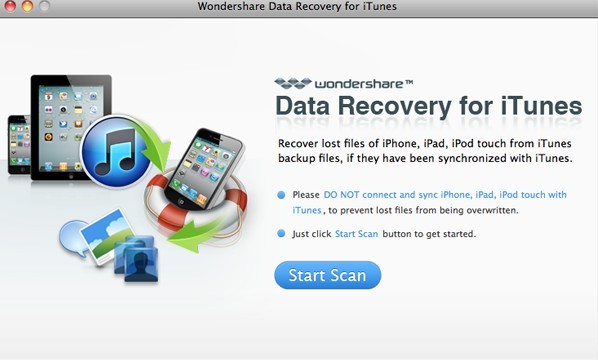
    First, Free download ITunes data recovery Mac,and install and run the program on your Mac.


    Step 1: Scan iTunes

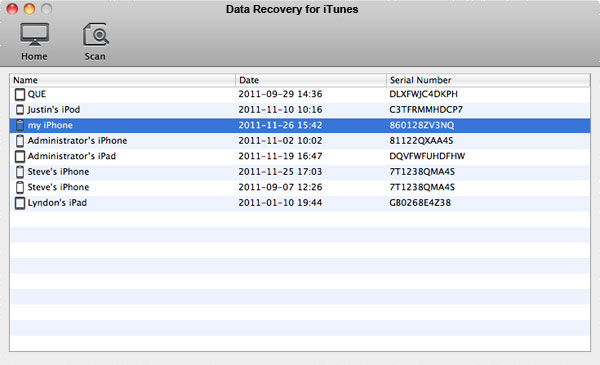
    After install launch the software and in the Home window click “Start Scan”. This will bring you to a list of all the devices that are synced with your Mac’s current copy of iTunes. Highlight a device by clicking it and then click Scan.


    Step 2: Preview and Select

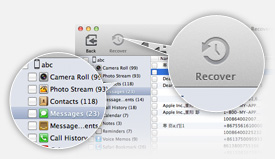
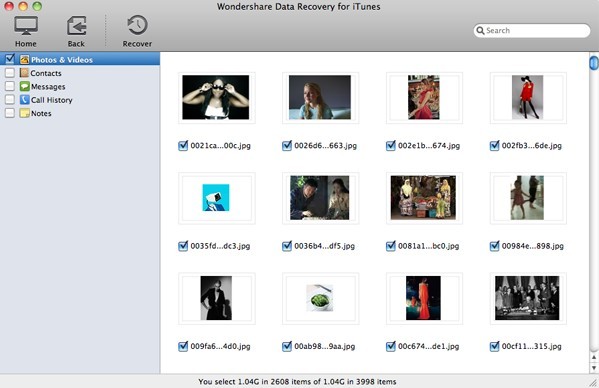
    After you click Scan, you’ll immediately be able to view thumbnails of all media files previously synced to iTunes from that device. Browse these files by category (Photos and Videos, Contacts and Notes) by clicking one of these three options on the top left of the window.


    Custom Select

    Select one at a time by checking the individual boxes located under each thumbnail, or select all files in a category (Contacts, for example) by checking the box next to each category in the top left.

    Step 3: Recover Your Files

    After you’ve completed selecting all the files you want to recover, just click Recover in the menu bar next to the Back button (Actually recover is not allowed in the free trial version). At the Save prompt, you’ll be asked to name and select the destination folder for your recovered files (Desktop, for example). Your file will export immediately to the location you specified. Now you’re all done. Simple, right? To scan, view and recover files from another device, just click the Back button. Enjoy your reclaimed photos, videos, and more!

How to backup all iphone files to Windows computer?

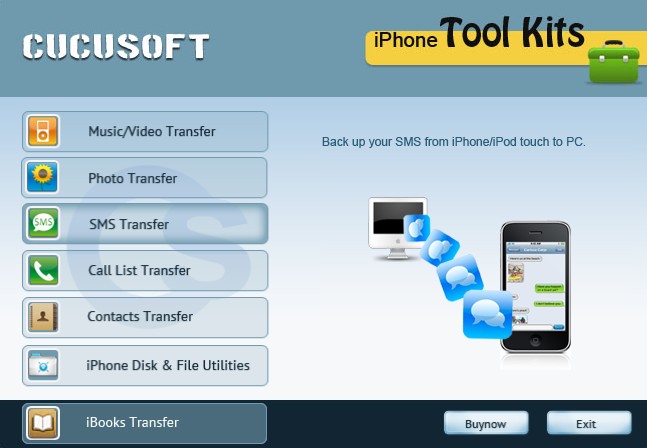
  • Step:1 Free download Cucusoft iPhone Tool Kits

    For Mac: Free download iMacsoft iPhone to Mac Transfer

    Connect iPhone to computer after installing the iphone backup software. The software will automatically detect it and will show the lst of file from the iPhone.


    Step:2 Choose the files you want to take backup and click on export button.


    Step:3 After you click Export button, the under given window will pop up, you can choose either backup to computer or itunes directly. You can set the output folder at Advanced->Options before you transfer


    Step:4 When backup is finished a window will pop up displaying message as 'export finished' after which you can see it from the location stored in.


    So easily backup all your iphone files to computer now.

    For Mac: Free download iMacsoft iPhone to Mac Transfer

iOS 6.1.4 Jailbreak iPhone 4S, iPhone 5, iPod Touch 4G/5G


iOS 6.1.4 Jailbreak iPhone 4S, iPhone 5, iPod Touch 4G/5G
Due to a lawsuit by VirnetX, Apple will be changing the behavior of VPN On Demand for iOS devices using iOS 6.1 and later.
iOS 6.1.4 coming soon. If you want iOS 6.1.4 Jailbreak – Don’t update. Wait.

ORIG LINK
__________________

Jailbreak 6.1.4 Update. Complete FAQ.


Jailbreak 6.1.4 Update. Complete FAQ.
The Jailbreak 6.1 Untethered Evad3rs Jailbreak Team (Creators of JAILBREAK IOS 6.1 UNTETHERED) has launched a easy to use and brand new version of the Jailbreak IOS 6.1 Untethered Tool Redsn0w for the iPhone 5, 4S, 4 with iOS 6.1 and 3Gs and the iPad 3/2, it is a final version and it uses the same DFU IOS 6.1 Jailbreak Untethered tool that has bee used in previous versions of Evasi0n. Apple Will be released new iOS 6.1.4. Insiders has information: iOS 6.1.3 Available For Download This Week.

….. Evad3rs Team Leader tells that he’s analyzed the 6.1.4 beta update and found that it patches at least one of the five bugs the jailbreak exploits, namely a flaw in the operating system’s time zone settings. The beta update likely signals the end of using evasi0n to hack new or updated devices after the update is released to users, says Wang, who says he’s still testing the patch to see which other vulnerabilities exploited by the jailbreak might no longer exist in the new operating system.

Don’t Upgrade To iOS 6.1.4 If You Want Untethered Jailbreak. Wait….

ORIG LINK __________________

Recover Data from iPhone/iPhone 3GS/iPhone 4/iPhone 4S/iPhone 5

Get Back Your Lost Contacts, Photos, Messages and More!
No way to recover your lost files of iPhone, iPad or iPod Touch?That's simply not true. All you need is an iPhone data recovery tool. Keep reading the detailedsolution below.


All-in-on iphone&iTues data recovery: Recover iphone lost data computer directly,or recover from iTunes Backup File

Free download Iphone 4 Data Recovery

Free download Iphone 5 Data Recovery

Free download Iphone 4S Data Recovery

Free download Iphone 3GS Data Recovery


More tips:How to recover deleted files on iPhone 5 iphone 4S iphone 4 iOS 6? - manage-iphone.com
Welcome to visit us.

New itools update Here...

New itools update Here...


Download


itunes 11.0.2 update

iTunes 11.0.2


About iTunes 11.0.2

The new iTunes includes a dramatically simplified player, a completely redesigned Store, and iCloud features you'll love—this is the best iTunes yet.

Completely Redesigned. iTunes makes it more fun to explore and enjoy your music, movies, and TV shows. You'll love the beautiful edge-to-edge design, custom designs for each album, movie, or TV show in your library, and getting personal recommendations any time you click In the Store.
A New Store. The iTunes Store has been completely redesigned and now features a clean look that makes it simpler than ever to see what's hot and discover new favorites.
Play purchases from iCloud. Your music, movie, and TV show purchases in iCloud now appear inside your library. Just sign-in with your Apple ID to see them. Double-click to play them directly from iCloud or download a copy you can sync to a device or play while offline.
Up Next. It's now simple to see which songs are playing next, all from a single place. Just click the Up Next icon in the center display and they'll instantly appear. You can even reorder, add, or skip songs whenever you like.
New MiniPlayer. You can now do a whole lot more with a lot less space. In addition to showing what's playing, MiniPlayer now includes album art, adds Up Next, and makes it easy to search for something new to play—all from a smaller and more elegant design.
Improved search. It's never been easier to find what you're looking for in iTunes. Just type in the search field and you'll instantly see results from across your entire library. Select any result and iTunes takes you right to it.
Playback syncing. iCloud now remembers your place in a movie or TV show for you. Whenever you play the same movie or episode from your iPhone, iPad, iPod touch, or Apple TV, it will continue right where you left off.

This update adds a new Composers view for music, improves responsiveness when syncing playlists with a large number of songs, and fixes an issue where purchases may not show up in your iTunes library. This update also includes other stability and performance improvements.


For information on the security content of this update, please visit: support.apple.com/kb/HT1222.

Windows SHA1= c247ece76d06101867ec11191aead1cebc46ea32

Windows 64 SHA1= 14ccca67b9ba181bfb126de028d3e6aa4df3b684

Mac SHA1= e8eba6c2b83b9e24116a9944c808525bed260aa0

orig. link: iTunes 11.0.2

download link: itune 11.0.2

How To Update New Goophone I5 ROM With Google Play


How To Update New Goophone I5 ROM With Google Play


Here is the guide that how to update Goophone I5 with latest ROM.
The latest ROM for goophone i5.

Fixes:

- Default Language is English (Chinese on the stock software)
- Chinese spam and bloatware removed.
- All chinese apps were translated to english.
- Slide to Unlock on all Languages (Not working on stock software)
- Playstore Installed
- Calendar Bug Fixed
- Slide Poweroff on all languages (Not working on stock software)
- Camara Bug Fixed (On previous software the images where blurried)
- Increased Speed and Performance on all tasks
- Clear Call History bug Fixed (Not working on stock software)
- Contact delete bug fixed (Not working on stock software)
- GPS menu bug fixed (Not working on stock software)
- The possibility to install another launcher the users may like (Not possible on stock software)

Aditional Features:

- Mobile uncle tools installed
- Titanium backup installed
- Apn Manager installed (allow users to set up their own APN settings for 3G network)
- Rebooter (allow users to reboot the phone in just 1 second)
- Es File Explorer
- The ROM is already rooted
- A.I Type keyboard with iphone theme installed

How to install

- Reboot into recovery
- Wipe data/factory reset
- wipe cache
- Advanced -> Wipe Dalvik cache
- Install zip from sd card
- Choose zip from sd card
- goophonei5-xda.zip -> install

And that's it!!

Here is the link to download ROM: Goophone i5 ROM

Apple Official Firmwares [All in One] [6.1.2] [Download]::.

Here you can find the direct links to all iPhone Firmware Files for every released model.


1.0.0 (2G): iPhone1,1_1.0_1A543a_Restore.ipsw
1.0.1 (2G): iPhone1,1_1.0.1_1C25_Restore.ipsw
1.0.2 (2G): iPhone1,1_1.0.2_1C28_Restore.ipsw
------------------------------------------------------------
1.1.1 (2G): iPhone1,1_1.1.1_3A109a_Restore.ipsw
1.1.2 (2G): iPhone1,1_1.1.2_3B48b_Restore.ipsw
1.1.3 (2G): iPhone1,1_1.1.3_4A93_Restore.ipsw
1.1.4 (2G): iPhone1,1_1.1.4_4A102_Restore.ipsw
------------------------------------------------------------
2.0.0 (2G): iPhone1,1_2.0_5A347_Restore.ipsw
2.0.0 (3G): iPhone1,2_2.0_5A347_Restore.ipsw
------------------------------------------------------------
2.0.1 (2G): iPhone1,1_2.0.1_5B108_Restore.ipsw
2.0.1 (3G): iPhone1,2_2.0.1_5B108_Restore.ipsw
------------------------------------------------------------
2.0.2 (2G): iPhone1,1_2.0.2_5C1_Restore.ipsw
2.0.2 (3G): iPhone1,2_2.0.2_5C1_Restore.ipsw
------------------------------------------------------------
2.1.0 (2G): iPhone1,1_2.1_5F136_Restore.ipsw
2.1.0 (3G): iPhone1,2_2.1_5F136_Restore.ipsw
------------------------------------------------------------
2.2.0 (2G): iPhone1,1_2.2_5G77_Restore.ipsw
2.2.0 (3G): iPhone1,2_2.2_5G77_Restore.ipsw
------------------------------------------------------------
2.2.1 (2G): iPhone1,1_2.2.1_5H1_Restore.ipsw
2.2.1 (3G): iPhone1,2_2.2.1_5H11_Restore.ipsw
------------------------------------------------------------
3.0.0 (2G): iPhone1,1_3.0_7A341_Restore.ipsw
3.0.0 (3G): iPhone1,2_3.0_7A341_Restore.ipsw
3.0.0 (3GS): iPhone2,1_3.0_7A341_Restore.ipsw
------------------------------------------------------------
3.0.1 (2G): iPhone1,1_3.0.1_7A400_Restore.ipsw
3.0.1 (3G): iPhone1,2_3.0.1_7A400_Restore.ipsw
3.0.1 (3GS): iPhone2,1_3.0.1_7A400_Restore.ipsw
------------------------------------------------------------
3.1.0 (2G): iPhone1,1_3.1_7C144_Restore.ipsw
3.1.0 (3G): iPhone1,2_3.1_7C144_Restore.ipsw
3.1.0 (3GS): iPhone2,1_3.1_7C144_Restore.ipsw
------------------------------------------------------------
3.1.2 (2G): iPhone1,1_3.1.2_7D11_Restore.ipsw
3.1.2 (3G): iPhone1,2_3.1.2_7D11_Restore.ipsw
3.1.2 (3GS): iPhone2,1_3.1.2_7D11_Restore.ipsw
------------------------------------------------------------
3.1.3 (2G): iPhone1,1_3.1.3_7E18_Restore.ipsw
3.1.3 (3G): iPhone1,2_3.1.3_7E18_Restore.ipsw
3.1.3 (3GS): iPhone2,1_3.1.3_7E18_Restore.ipsw
------------------------------------------------------------
4.0.0 (3G): iPhone1,2_4.0_8A293_Restore.ipsw
4.0.0 (3GS): iPhone2,1_4.0_8A293_Restore.ipsw
4.0.0 (4): iPhone3,1_4.0_8A293_Restore.ipsw
------------------------------------------------------------
4.0.1 (3G): iPhone1,2_4.0.1_8A306_Restore.ipsw
4.0.1 (3GS): iPhone2,1_4.0.1_8A306_Restore.ipsw
4.0.1 (4): iPhone3,1_4.0.1_8A306_Restore.ipsw
------------------------------------------------------------
4.0.2 (3G): iPhone1,2_4.0.2_8A400_Restore.ipsw
4.0.2 (3GS): iPhone2,1_4.0.2_8A400_Restore.ipsw
4.0.2 (4): iPhone3,1_4.0.2_8A400_Restore.ipsw
------------------------------------------------------------
4.1.0 (3G): iPhone1,2_4.1_8B117_Restore.ipsw
4.1.0 (3GS): iPhone2,1_4.1_8B117_Restore.ipsw
4.1.0 (4): iPhone3,1_4.1_8B117_Restore.ipsw
------------------------------------------------------------
4.2.1 (3G): iPhone1,2_4.2.1_8C148_Restore.ipsw
4.2.1 (3GS): iPhone2,1_4.2.1_8C148a_Restore.ipsw
4.2.1 (4): iPhone3,1_4.2.1_8C148_Restore.ipsw
------------------------------------------------------------
4.3.0 (3GS): iPhone2,1_4.3_8F190_Restore.ipsw
4.3.0 (4 GSM): iPhone3,1_4.3_8F190_Restore.ipsw
4.2.6 (4 CDMA): iPhone3,3_4.2.10_8E600_Restore.ipsw
------------------------------------------------------------
4.3.1 (3GS): iPhone2,1_4.3.1_8G4_Restore.ipsw
4.3.1 (4 GSM): iPhone3,1_4.3.1_8G4_Restore.ipsw
4.2.7 (4 CDMA): iPhone3,3_4.2.7_8E303_Restore.ipsw
------------------------------------------------------------
4.3.2 (3GS): iPhone2,1_4.3.2_8H7_Restore.ipsw
4.3.2 (4 GSM): iPhone3,1_4.3.2_8H7_Restore.ipsw
4.2.8 (4 CDMA): iPhone3,3_4.2.8_8E401_Restore.ipsw
------------------------------------------------------------
4.3.3 (3GS): iPhone2,1_4.3.3_8J2_Restore.ipsw
4.3.3 (4 GSM): iPhone3,1_4.3.3_8J2_Restore.ipsw
4.2.9 (4 CDMA): iPhone3,3_4.2.9_8E501_Restore.ipsw
------------------------------------------------------------
4.3.4 (3GS): iPhone2,1_4.3.4_8K2_Restore.ipsw
4.3.4 (4 GSM): iPhone3,1_4.3.4_8K2_Restore.ipsw
4.2.10 (4 CDMA): iPhone3,3_4.2.10_8E600_Restore.ipsw
------------------------------------------------------------
4.3.5 (3GS): iPhone2,1_4.3.5_8L1_Restore.ipsw
4.3.5 (4 GSM): iPhone3,1_4.3.5_8L1_Restore.ipsw
------------------------------------------------------------
5.0 (3GS): iPhone2,1_5.0_9A334_Restore.ipsw
5.0 (4 GSM): iPhone3,1_5.0_9A334_Restore.ipsw
5.0 (4 CDMA): iPhone3,3_5.0_9A334_Restore.ipsw
5.0 (4S): iPhone4,1_5.0_9A334_Restore.ipsw
------------------------------------------------------------
5.0.1 (3GS): iPhone2,1_5.0.1_9A405_Restore.ipsw
5.0.1 (4 GSM): iPhone3,1_5.0.1_9A405_Restore.ipsw
5.0.1 (4 CDMA): iPhone3,3_5.0.1_9A405_Restore.ipsw
5.0.1 (4S): iPhone4,1_5.0.1_9A405_Restore.ipsw
5.0.1 (4S) [9A406]: iPhone4,1_5.0.1_9A406_Restore.ipsw
------------------------------------------------------------
5.1.0 (3GS): iPhone2,1_5.1_9B176_Restore.ipsw
5.1.0 (4 GSM): iPhone3,1_5.1_9B176_Restore.ipsw
5.1.0 (4 CDMA): iPhone3,3_5.1_9B176_Restore.ipsw
5.1.0 (4S): iPhone4,1_5.1_9B179_Restore.ipsw
------------------------------------------------------------
5.1.1 (3GS): iPhone2,1_5.1.1_9B206_Restore.ipsw
5.1.1 (4 GSM): iPhone3,1_5.1.1_9B206_Restore.ipsw
5.1.1 (4 GSM) [9B208]: iPhone3,1_5.1.1_9B208_Restore.ipsw
5.1.1 (4 CDMA): iPhone3,3_5.1.1_9B206_Restore.ipsw
5.1.1 (4S): iPhone4,1_5.1.1_9B206_Restore.ipsw
------------------------------------------------------------
6.0.0 (3GS): iPhone2,1_6.0_10A403_Restore.ipsw
6.0.0 (4 GSM): iPhone3,1_6.0_10A403_Restore.ipsw
6.0.0 (4): iPhone3,2_6.0_10A403_Restore.ipsw
6.0.0 (4 CDMA): iPhone3,3_6.0_10A403_Restore.ipsw
6.0.0 (4S): iPhone4,1_6.0_10A403_Restore.ipsw
6.0.0 (5 GSM): iPhone5,1_6.0_10A405_Restore.ipsw
6.0.0 (5 GSM+CDMA): iPhone5,2_6.0_10A405_Restore.ipsw
------------------------------------------------------------
6.0.1 (3GS): iPhone2,1_6.0.1_10A523_Restore.ipsw
6.0.1 (4 GSM): iPhone3,1_6.0.1_10A523_Restore.ipsw
6.0.1 (4): iPhone3,2_6.0.1_10A523_Restore.ipsw
6.0.1 (4 CDMA): iPhone3,3_6.0.1_10A523_Restore.ipsw
6.0.1 (4S): iPhone4,1_6.0.1_10A523_Restore.ipsw
6.0.1 (5 GSM): iPhone5,1_6.0.1_10A525_Restore.ipsw
6.0.1 (5 GSM+CDMA): iPhone5,2_6.0.1_10A525_Restore.ipsw
------------------------------------------------------------
6.0.2 (5 GSM): iPhone5,1_6.0.2_10A551_Restore.ipsw
6.0.2 (5 GSM+CDMA): iPhone5,2_6.0.2_10A551_Restore.ipsw
------------------------------------------------------------
6.1.0 (3GS): iPhone2,1_6.1_10B141_Restore.ipsw
6.1.0 (4 GSM): iPhone3,1_6.1_10B144_Restore.ipsw
6.1.0 (4): iPhone3,2_6.1_10B144_Restore.ipsw
6.1.0 (4 CDMA): iPhone3,3_6.1_10B141_Restore.ipsw
6.1.0 (4S): iPhone4,1_6.1_10B142_Restore.ipsw
6.1.0 (5 GSM): iPhone5,1_6.1_10B143_Restore.ipsw
6.1.0 (5 GSM+CDMA): iPhone5,2_6.1_10B143_Restore.ipsw
------------------------------------------------------------
6.1.1 (4S): iPhone4,1_6.1.1_10B145_Restore.ipsw
------------------------------------------------------------
6.1.2 (3GS): iPhone2,1_6.1.2_10B146_Restore.ipsw
6.1.2 (4 GSM): iPhone3,1_6.1.2_10B146_Restore.ipsw
6.1.2 (4): iPhone3,2_6.1.2_10B146_Restore.ipsw
6.1.2 (4 CDMA): iPhone3,3_6.1.2_10B146_Restore.ipsw
6.1.2 (4S): iPhone4,1_6.1.2_10B146_Restore.ipsw
6.1.2 (5 GSM): iPhone5,1_6.1.2_10B146_Restore.ipsw
6.1.2 (5 GSM+CDMA): iPhone5,2_6.1.2_10B146_Restore.ipsw


NOTE : Thread will be updated as new Firmware Versions & Models came out

Apple iPad Official Firmwares [6.1.2] [Download]::.

Here you can find the direct links to all iPad Firmware Files for every released model.


3.2.0 (iPad 1): iPad1,1_3.2_7B367_Restore.ipsw
3.2.1 (iPad 1): iPad1,1_3.2.1_7B405_Restore.ipsw
3.2.2 (iPad 1): iPad1,1_3.2.2_7B500_Restore.ipsw
4.2.1 (iPad 1): iPad1,1_4.2.1_8C148_Restore.ipsw
------------------------------------------------------------
4.3.0 (iPad 1): iPad1,1_4.3_8F190_Restore.ipsw
4.3.0 (iPad 2 Wi-Fi): iPad2,1_4.3_8F191_Restore.ipsw
4.3.0 (iPad 2 GSM): iPad2,2_4.3_8F191_Restore.ipsw
4.3.0 (iPad 2 CDMA): iPad2,3_4.3_8F191_Restore.ipsw
------------------------------------------------------------
4.3.1 (iPad 1): iPad1,1_4.3.1_8G4_Restore.ipsw
4.3.1 (iPad 2 Wi-Fi): iPad2,1_4.3.1_8G4_Restore.ipsw
4.3.1 (iPad 2 GSM): iPad2,2_4.3.1_8G4_Restore.ipsw
4.3.1 (iPad 2 CDMA): iPad2,3_4.3.1_8G4_Restore.ipsw
------------------------------------------------------------
4.3.2 (iPad 1): iPad1,1_4.3.2_8H7_Restore.ipsw
4.3.2 (iPad 2 Wi-Fi): iPad2,1_4.3.2_8H7_Restore.ipsw
4.3.2 (iPad 2 GSM): iPad2,2_4.3.2_8H7_Restore.ipsw
4.3.2 (iPad 2 CDMA): iPad2,3_4.3.2_8H8_Restore.ipsw
------------------------------------------------------------
4.3.3 (iPad 1): iPad1,1_4.3.3_8J3_Restore.ipsw
4.3.3 (iPad 2 Wi-Fi): iPad2,1_4.3.3_8J2_Restore.ipsw
4.3.3 (iPad 2 GSM): iPad2,2_4.3.3_8J2_Restore.ipsw
4.3.3 (iPad 2 CDMA): iPad2,3_4.3.3_8J2_Restore.ipsw
------------------------------------------------------------
4.3.4 (iPad 1): iPad1,1_4.3.4_8K2_Restore.ipsw
4.3.4 (iPad 2 Wi-Fi): iPad2,1_4.3.4_8K2_Restore.ipsw
4.3.4 (iPad 2 GSM): iPad2,2_4.3.4_8K2_Restore.ipsw
4.3.4 (iPad 2 CDMA): iPad2,3_4.3.4_8K2_Restore.ipsw
------------------------------------------------------------
4.3.5 (iPad 1): iPad1,1_4.3.5_8L1_Restore.ipsw
4.3.5 (iPad 2 Wi-Fi): iPad2,1_4.3.5_8L1_Restore.ipsw
4.3.5 (iPad 2 GSM): iPad2,2_4.3.5_8L1_Restore.ipsw
4.3.5 (iPad 2 CDMA): iPad2,3_4.3.5_8L1_Restore.ipsw
------------------------------------------------------------
5.0 (iPad 1): iPad1,1_5.0_9A334_Restore.ipsw
5.0 (iPad 2 Wi-Fi): Pad2,1_5.0_9A334_Restore.ipsw
5.0 (iPad 2 GSM): iPad2,2_5.0_9A334_Restore.ipsw
5.0 (iPad 2 CDMA): iPad2,3_5.0_9A334_Restore.ipsw
------------------------------------------------------------
5.0.1 (iPad 1): iPad1,1_5.0.1_9A405_Restore.ipsw
5.0.1 (iPad 2 Wi-Fi): iPad2,1_5.0.1_9A405_Restore.ipsw
5.0.1 (iPad 2 GSM): iPad2,2_5.0.1_9A405_Restore.ipsw
5.0.1 (iPad 2 CDMA): iPad2,3_5.0.1_9A405_Restore.ipsw
------------------------------------------------------------
5.1.0 (iPad 1): iPad1,1_5.1_9B176_Restore.ipsw
5.1.0 (iPad 2 Wi-Fi): iPad2,1_5.1_9B176_Restore.ipsw
5.1.0 (iPad 2 GSM): iPad2,2_5.1_9B176_Restore.ipsw
5.1.0 (iPad 2 CDMA): iPad2,3_5.1_9B176_Restore.ipsw
5.1.0 (iPad 2 New): iPad2,4_5.1_9B176_Restore.ipsw
5.1.0 (iPad 3 Wi-Fi): iPad3,1_5.1_9B176_Restore.ipsw
5.1.0 (iPad 3 GSM): iPad3,2_5.1_9B176_Restore.ipsw
5.1.0 (iPad 3 CDMA): iPad3,3_5.1_9B176_Restore.ipsw
------------------------------------------------------------
5.1.1 (iPad 1): iPad1,1_5.1.1_9B206_Restore.ipsw (Shortened URL Due to Forum Censor Problem)
5.1.1 (iPad 2 Wi-Fi): iPad2,1_5.1.1_9B206_Restore.ipsw
5.1.1 (iPad 2 GSM): iPad2,2_5.1.1_9B206_Restore.ipsw
5.1.1 (iPad 2 CDMA): iPad2,3_5.1.1_9B206_Restore.ipsw
5.1.1 (iPad 2 New): iPad2,4_5.1.1_9B206_Restore.ipsw
5.1.1 (iPad 3 Wi-Fi): iPad3,1_5.1.1_9B206_Restore.ipsw
5.1.1 (iPad 3 GSM): iPad3,2_5.1.1_9B206_Restore.ipsw
5.1.1 (iPad 3 CDMA): iPad3,3_5.1.1_9B206_Restore.ipsw
------------------------------------------------------------
6.0.0 (iPad 2 Wi-Fi): iPad2,1_6.0_10A403_Restore.ipsw
6.0.0 (iPad 2 GSM): iPad2,2_6.0_10A403_Restore.ipsw
6.0.0 (iPad 2 CDMA): iPad2,3_6.0_10A403_Restore.ipsw
6.0.0 (iPad 2 New): iPad2,4_6.0_10A403_Restore.ipsw
6.0.0 (iPad 3 Wi-Fi): iPad3,1_6.0_10A403_Restore.ipsw
6.0.0 (iPad 3 CDMA): iPad3,2_6.0_10A403_Restore.ipsw
6.0.0 (iPad 3 GSM): iPad3,3_6.0_10A403_Restore.ipsw
------------------------------------------------------------
6.0.1 (iPad 2 Wi-Fi): iPad2,1_6.0.1_10A523_Restore.ipsw
6.0.1 (iPad 2 GSM): iPad2,2_6.0.1_10A523_Restore.ipsw
6.0.1 (iPad 2 CDMA): iPad2,3_6.0.1_10A523_Restore.ipsw
6.0.1 (iPad 2 New): iPad2,4_6.0.1_10A523_Restore.ipsw
6.0.1 (iPad Mini Wi-Fi): iPad2,5_6.0.1_10A523_Restore.ipsw
6.0.1 (iPad Mini GSM): iPad2,6_6.0.1_10A8426_Restore.ipsw
6.0.1 (iPad Mini CDMA): iPad2,7_6.0.1_10A8426_Restore.ipsw
6.0.1 (iPad 3 Wi-Fi): iPad3,1_6.0.1_10A523_Restore.ipsw
6.0.1 (iPad 3 CDMA): iPad3,2_6.0.1_10A523_Restore.ipsw
6.0.1 (iPad 3 GSM): iPad3,3_6.0.1_10A523_Restore.ipsw
6.0.1 (iPad 4 Wi-Fi): iPad3,4_6.0.1_10A523_Restore.ipsw
6.0.1 (iPad 4): iPad3,5_6.0.1_10A8426_Restore.ipsw
6.0.1 (iPad 4): iPad3,6_6.0.1_10A8426_Restore.ipsw
------------------------------------------------------------
6.0.2 (iPad Mini Wi-Fi): iPad2,5_6.0.2_10A550_Restore.ipsw
6.0.2 (iPad Mini GSM): iPad2,6_6.0.2_10A8500_Restore.ipsw
6.0.2 (iPad Mini CDMA): iPad2,7_6.0.2_10A8500_Restore.ipsw
------------------------------------------------------------
6.1.0 (iPad 2 Wi-Fi): iPad2,1_6.1_10B141_Restore.ipsw
6.1.0 (iPad 2 GSM): iPad2,2_6.1_10B141_Restore.ipsw
6.1.0 (iPad 2 CDMA): iPad2,3_6.1_10B141_Restore.ipsw
6.1.0 (iPad 2 New): iPad2,4_6.1_10B141_Restore.ipsw
6.1.0 (iPad Mini Wi-Fi): iPad2,5_6.1_10B141_Restore.ipsw
6.1.0 (iPad Mini GSM): iPad2,6_6.1_10B141_Restore.ipsw
6.1.0 (iPad Mini CDMA): iPad2,7_6.1_10B141_Restore.ipsw
6.1.0 (iPad 3 Wi-Fi): iPad3,1_6.1_10B141_Restore.ipsw
6.1.0 (iPad 3 CDMA): iPad3,2_6.1_10B141_Restore.ipsw
6.1.0 (iPad 3 GSM): iPad3,3_6.1_10B141_Restore.ipsw
6.1.0 (iPad 4 Wi-Fi): iPad3,4_6.1_10B141_Restore.ipsw
6.1.0 (iPad 4): iPad3,5_6.1_10B141_Restore.ipsw
6.1.0 (iPad 4): iPad3,6_6.1_10B141_Restore.ipsw
------------------------------------------------------------
6.1.2 (iPad 2 Wi-Fi): iPad2,1_6.1.2_10B146_Restore.ipsw
6.1.2 (iPad 2 GSM): iPad2,2_6.1.2_10B146_Restore.ipsw
6.1.2 (iPad 2 CDMA): iPad2,3_6.1.2_10B146_Restore.ipsw
6.1.2 (iPad 2 New): iPad2,4_6.1.2_10B146_Restore.ipsw
6.1.2 (iPad Mini Wi-Fi): iPad2,5_6.1.2_10B146_Restore.ipsw
6.1.2 (iPad Mini GSM): iPad2,6_6.1.2_10B147_Restore.ipsw
6.1.2 (iPad Mini CDMA): iPad2,7_6.1.2_10B147_Restore.ipsw
6.1.2 (iPad 3 Wi-Fi): iPad3,1_6.1.2_10B146_Restore.ipsw
6.1.2 (iPad 3 CDMA): iPad3,2_6.1.2_10B146_Restore.ipsw
6.1.2 (iPad 3 GSM): iPad3,3_6.1.2_10B146_Restore.ipsw
6.1.2 (iPad 4 Wi-Fi): iPad3,4_6.1.2_10B146_Restore.ipsw
6.1.2 (iPad 4 GSM): iPad3,5_6.1.2_10B147_Restore.ipsw
6.1.2 (iPad 4 GSM+CDMA): iPad3,6_6.1.2_10B147_Restore.ipsw


NOTE : Thread will be updated as new Firmware Versions & Models came out

Apple Official Firmwares [All in One] [6.1.2] [Download]::.

Here you can find the direct links to all iPod Touch Firmware Files for every released model.


1.1 (1G): iPod1,1_1.1_3A101a_Restore.ipsw
1.1.1 (1G): iPod1,1_1.1.1_3A110a_Restore.ipsw
1.1.2 (1G): iPod1,1_1.1.2_3B48b_Restore.ipsw
1.1.3 (1G): iPod1,1_1.1.3_4A93_Restore.ipsw
1.1.4 (1G): iPod1,1_1.1.4_4A102_Restore.ipsw
1.1.5 (1G): iPod1,1_1.1.5_4B1_Restore.ipsw
------------------------------------------------------------
2.0.0 (1G): iPod1,1_2.0_5A347_Restore.ipsw (Only can purchase through iTunes)
2.0.1 (1G): iPod1,1_2.0.1_5B108_Restore.ipsw
2.2.0 (1G): iPod1,1_2.2_5G77_Restore.ipsw
2.2.0 (2G): iPod2,1_2.2_5G77a_Restore.ipsw
2.2.1 (2G): iPod2,1_2.2.1_5H11a_Restore.ipsw
------------------------------------------------------------
3.1.2 (3G): iPod3,1_3.1.2_7D11_Restore.ipsw
3.1.3 (3G): iPod3,1_3.1.3_7E18_Restore.ipsw
------------------------------------------------------------
4.0.0 (2G): iPod2,1_4.0_8A293_Restore.ipsw
4.0.0 (3G): iPod3,1_4.0_8A293_Restore.ipsw
------------------------------------------------------------
4.0.2 (2G): iPod2,1_4.0.2_8A400_Restore.ipsw
4.0.2 (3G): iPod3,1_4.0.2_8A400_Restore.ipsw
------------------------------------------------------------
4.1.0 (2G): iPod2,1_4.1_8B117_Restore.ipsw
4.1.0 (3G): iPod3,1_4.1_8B117_Restore.ipsw
4.1.0 (4G): iPod4,1_4.1_8B117_Restore.ipsw
------------------------------------------------------------
4.2.1 (2G): iPod2,1_4.2.1_8C148_Restore.ipsw
4.2.1 (3G): iPod3,1_4.2.1_8C148_Restore.ipsw
4.2.1 (4G): iPod4,1_4.2.1_8C148_Restore.ipsw
------------------------------------------------------------
4.3.0 (3G): iPod3,1_4.3_8F190_Restore.ipsw
4.3.0 (4G): iPod4,1_4.3_8F190_Restore.ipsw
------------------------------------------------------------
4.3.1 (3G): iPod3,1_4.3.1_8G4_Restore.ipsw
4.3.1 (4G): iPod4,1_4.3.1_8G4_Restore.ipsw
------------------------------------------------------------
4.3.2 (3G): iPod3,1_4.3.2_8H7_Restore.ipsw
4.3.2 (4G): iPod4,1_4.3.2_8H7_Restore.ipsw
------------------------------------------------------------
4.3.3 (3G): iPod3,1_4.3.3_8J2_Restore.ipsw
4.3.3 (4G): iPod4,1_4.3.3_8J2_Restore.ipsw
------------------------------------------------------------
4.3.4 (3G): iPod3,1_4.3.4_8K2_Restore.ipsw
4.3.4 (4G): iPod4,1_4.3.4_8K2_Restore.ipsw
------------------------------------------------------------
4.3.5 (3G): iPod3,1_4.3.5_8L1_Restore.ipsw
4.3.5 (4G): iPod4,1_4.3.5_8L1_Restore.ipsw
------------------------------------------------------------
5.0 (3G): iPod3,1_5.0_9A334_Restore.ipsw
5.0 (4G): iPod4,1_5.0_9A334_Restore.ipsw
------------------------------------------------------------
5.0.1 (3G): iPod3,1_5.0.1_9A405_Restore.ipsw
5.0.1 (4G): iPod4,1_5.0.1_9A405_Restore.ipsw
------------------------------------------------------------
5.1.0 (3G): iPod3,1_5.1_9B176_Restore.ipsw
5.1.0 (4G): iPod4,1_5.1_9B176_Restore.ipsw
------------------------------------------------------------
5.1.1 (3G): iPod3,1_5.1.1_9B206_Restore.ipsw
5.1.1 (4G): iPod4,1_5.1.1_9B206_Restore.ipsw
------------------------------------------------------------
6.0.0 (4G): iPod4,1_6.0_10A403_Restore.ipsw
6.0.0 (5G): iPod5,1_6.0_10A406_Restore.ipsw
------------------------------------------------------------
6.0.1 (4G): iPod4,1_6.0.1_10A523_Restore.ipsw
6.0.1 (5G): iPod5,1_6.0.1_10A523_Restore.ipsw
------------------------------------------------------------
6.1.0 (4G): iPod4,1_6.1_10B144_Restore.ipsw
6.1.0 (5G): iPod5,1_6.1_10B141_Restore.ipsw
------------------------------------------------------------
6.1.2 (4G): iPod4,1_6.1.2_10B146_Restore.ipsw
6.1.2 (5G): iPod5,1_6.1.2_10B146_Restore.ipsw


NOTE : Thread will be updated as new Firmware Versions & Models came out

How to unlock iphone - free unlock any iphone 3g 3gs 4 4s 5 - [Update 2013] is true?

Hi,

Iphone unlocking any version any baseband is it true?
If it is true please i want iphone unlock tool without password........

please upload here......


http://www.youtube.com/watch?v=A0Rgbh3GGNI

How to unlock iphone - free unlock any iphone 3g 3gs 4 4s 5 - [Update 2013] http://www2.zippyshare.com/v/70006132...

Download Link 1 : http://www2.zippyshare.com/v/70006132...

Download Link 2 : Download Password for iPhone Unlocking Tool Update 2013.rar from Sendspace.com - send big files the easy way

Antivirus Scan : http://*******/YN5tMs


iPhone 4S Unlocking. Permanent Factory Unlock iPhone 4S for At&t, Vodafone, Orange UK, etc..

This is the World's ONLY permanent Factory Unlocking Solutions for iPhone 4S. Once unlocked, it will never lock back up again, as it becomes a "Factory Unlocked iPhone" No Software, or Jailbreaking required.

100% Guaranteed!

We can Unlock all other iPhone Models including:

Unlock iPhone 3G
Unlock iPhone 3GS
Unlock iPhone 4
Unlock iPhone 4S
Unlock iPhone 5

Unlock iPhone Carriers such as:

Unlock At&t iPhone
Unlock Vodafone UK iPhone
Unlock Orange UK iPhone
Unlock T-Mobile UK iPhone
Unlock O2 UK iPhone
Unlock Claro UK iPhone
Unlock Bouygues iPhone
Unlock Vodafone Australia iPhone

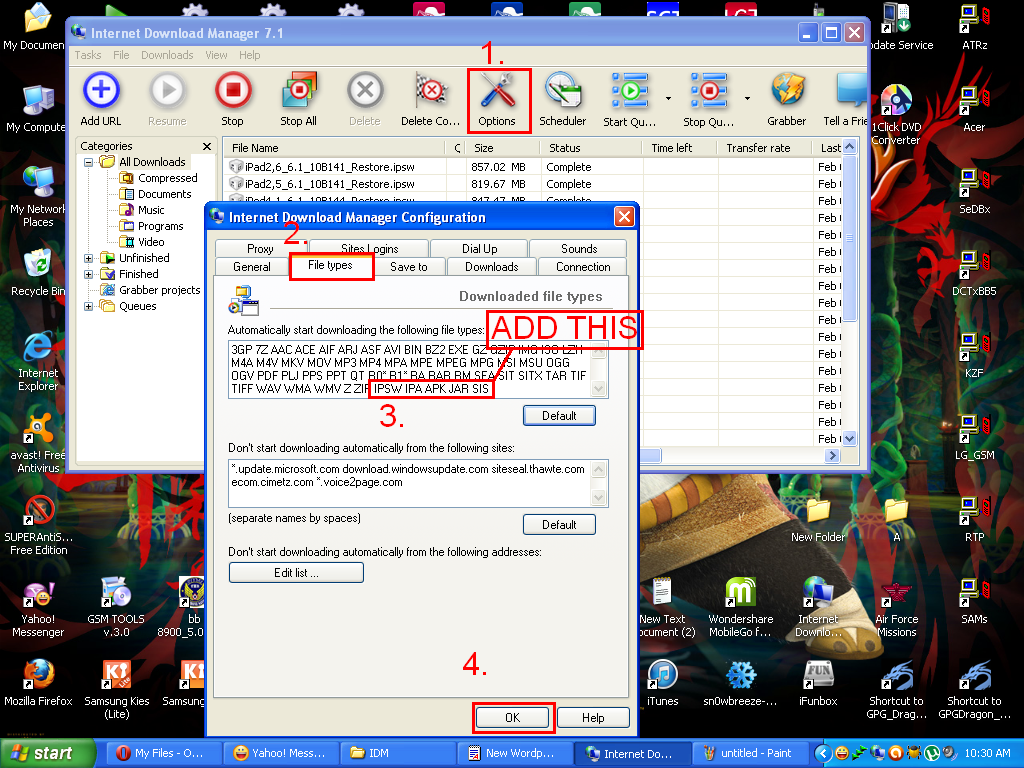
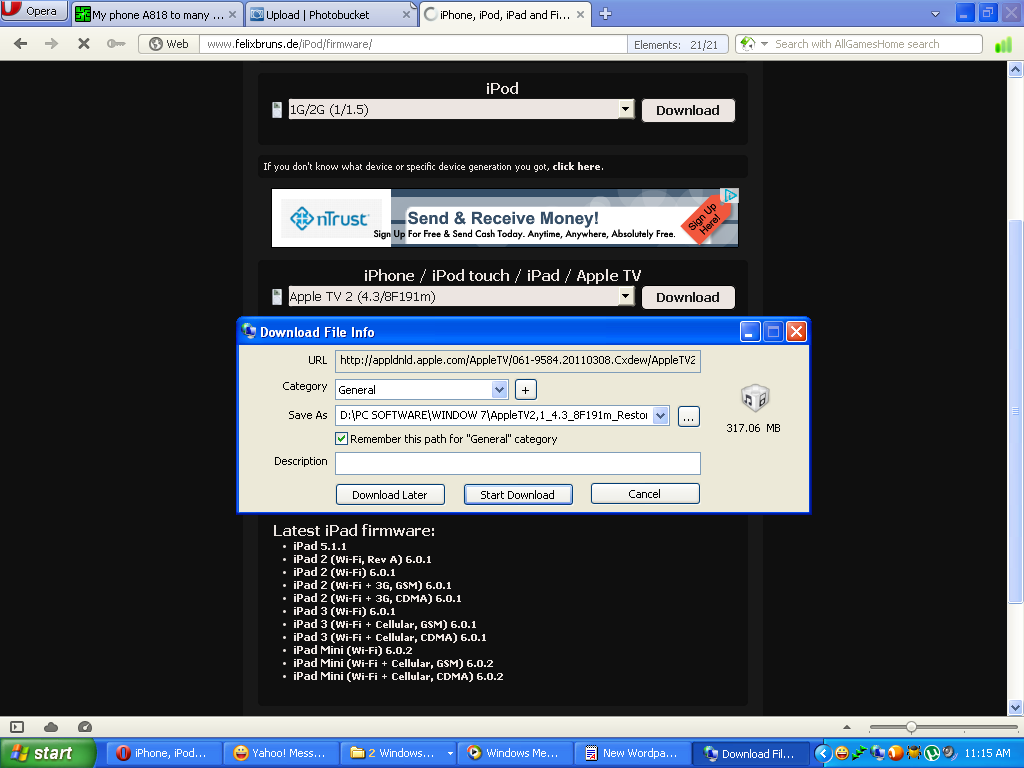
Download iphone firmware using idm guide........

DOWNLOAD THIS IDM FULL SETUP:
IDM_7.1_Full_Setup.exe

INSTALL IDM
OPEN IDM
SELECT OPTION
SELECT FILE TYPES
THEN AD THIS IPSW IPA APK JAR SIS
THEN CLICK OK.......

__________________


iPhone For Newbies Guide

iPhone 2G

3.1.3

1- Download 3.1.3 Firmware From Here iPhone1,1_3.1.3_7E18_Restore.ipsw

2- Put Your Phone in DFU MODE
How To and open itunes Your Phone Should be detected Click Ok And Hold SHIFT Button In Your Keyboard and Click Restore and Select Firmware You Already Downloaded.

3-Now Any iPhone 2G is Factory Unlocked So All You have to do is Just Connect Your iPhone To iTunes With Sim inserted and It Will be Activated .


4- If You Need To Jailbreak it You Can use Spirit is Easier Way to jailbreak Download it From
here It's Simple Connect Your iPhone and Click on Jailbreak

---------------------------------------------------------------------------

iPhone 3G

4.2.1

1-Download 4.2.1 From here iPhone1,2_4.2.1_8C148_Restore.ipsw

-if You Have Factory Unlocked iPhone Simply Follow This ( Put Your Phone in DFU MODE
How To and open itunes Your Phone Should be detected Click Ok And Hold SHIFT Button In Your Keyboard and Click Restore and Select Firmware You Already Downloaded)And Connect Your iPhone to iTunes to Activate it If You Need Jailbreak Use Redsn0w If You Don't Know How Follow This


2-If You Don't Have Factory Unlocked iPhone
-You Will Need Custom Firmware You Can Create it With Sn0wbreeze and Redsn0w or iREB
-Create Custom Firmware With Sn0wBreeze here's How To and You Can Use Sn0wBreeze to Enter Pawned DFU Mode after Firmware is created
-use iReb or Redsn0w to Enter Pawned DFU (either You Will Get Errors)
-Restore Your iPhone With Custom Firmware You Made With Sn0wbreeze With Holding SHIFT And Clicking on Restore
-if You Already Have 6.15 Baseband You Don't Need To Jailbreak the iPhone it's Already Jailbreak With Custom Firmware
-If You Don't Have 6.15 Baseband Use Redsn0w And Tick install iPad baseband and Jailbreak
-Just Open Cydia And Go To Sources And Open Repo666.ultrasn0w.com and Install ultrasn0w.

----------------------------------------------------------------------

iPhone 3GS

5.1.1

1-Download 5.1.1 From here iPhone2,1_5.1.1_9B206_Restore.ipsw

-if You Have Factory Unlocked iPhone Simply Follow This ( Put Your Phone in DFU MODE
How To and open itunes Your Phone Should be detected Click Ok And Hold SHIFT Button In Your Keyboard and Click Restore and Select Firmware You Already Downloaded)And Connect Your iPhone to iTunes to Activate it If You Need Easy Jailbreak Use Absinthe Connect and Click Jailbreak .

2-if You Don't Have Factory Unlocked iPhone

-You Will Need Custom Firmware You Can Create it With Sn0wbreeze and redsn0w or iReb
-Create Custom Firmware With Sn0wBreeze
IMPORTANT Select Baseband Preservation Mode Only With No Jailbreak (To be able to fix Searching Problem ).
-use iReb or Redsn0w to Enter Pawned DFU (either You Will Get Errors)
-Restore Your iPhone With Custom Firmware You Made With Sn0wbreeze With Holding SHIFT And Clicking on Restore
-Use Redsn0w And Tick on install ipad Baseband and Jailbreak and Click Next IF You Already Have 6.15 and Need To Downgrade it Tick on Downgrade ipad baseband instead of install ipad baseband
-Just Open Cydia And Go To Sources And Open Repo666.ultrasn0w.com and Install ultrasn0w.


VERY IMPORTANT WARNING ABOUT iPhone 3GS Before You install ipad baseband
[Warning] iPhone 3Gs New Baseband Flash Chip [INFO]
or Download Checker inside Threa
d


-----------------------------------------------------------------------
iPhone 4

5.1.1
1-Download 5.1.1 From Here iPhone3,1_5.1.1_9B206_Restore.ipsw

-if You Have Factory Unlocked iPhone Simply Follow This ( Put Your Phone in DFU MODE How To and open itunes Your Phone Should be detected Click Ok And Hold SHIFT Button In Your Keyboard and Click Restore and Select Firmware You Already Downloaded)And Connect Your iPhone to iTunes to Activate it If You Need Easy Jailbreak Use Absinthe Connect and Click Jailbreak

-if You Have The Only Unlock able Baseband 1.59 You Will Need Custom Firmware You Can Create it With Sn0wbreeze and redsn0w or iReb
-use iReb or Redsn0w to Enter Pawned DFU (either You Will Get Errors)
-Restore Your iPhone With Custom Firmware You Made With Sn0wbreeze With Holding SHIFT And Clicking on Restore
-Just Open Cydia And Go To Sources And Open Repo666.ultrasn0w.com and Install ultrasn0w. Or Search for ultran0w Fixer if it didn't Work

-Same Steps if You Are Have 4.10 , 3.10 ,2.10 and using Gevey sim and You Want to preserve Baseband

---------------------------------------------------------------------
iPhone 4s

5.1.1

1- Download 5.1.1 From here iPhone4,1_5.1.1_9B206_Restore.ipsw


2-Simply Follow This ( Put Your Phone in DFU MODE How To and open itunes Your Phone Should be detected Click Ok And Hold SHIFT Button In Your Keyboard and Click Restore and Select Firmware You Already Downloaded)And Connect Your iPhone to iTunes to Activate it If You Need Easy Jailbreak Use Absinthe Connect and Click Jailbreak


Tips And Tricks

How to Enter DFU Mode With a Broken Home or Power Button

No Wifi Unlock Way http://forum.gsmhosting.com/vbb/f456...rizwan-948886/
How to Put an iPhone Into DFU Mode
Pass Code Read Without Restoring Gecko iPhone Toolkit

Error 3194 Go To C:\WINDOWS\system32\drivers\etc and OPEN host file With notepad and remove Last line should look like this 74.208.105.171 gs.apple.com


if i Forgot Something Please Reply Here .

Hoping This Helps More Than Previous Guide .
Create Account Without Credit Card ( Free)

Creating an iTunes Store, App Store, iBookstore, and Mac App Store account without a credit card


Use thanks button only please

So we can keep it clean and easy to find


The Guide is Very Very Simple and Easy So Don't Ask For Help With Something Already #Explained


[Guide] 5.0.1 Upgrade And Downgrade Problems
 
Related Posts Plugin for WordPress, Blogger...

All Gsm Solution Headline Animator

Blogger Tips and TricksLatest Tips And TricksBlogger Tricks

Please Log in